
Quick Start
The WISER Tracker App is a viewing and management app for the WISER Real Time Location & Tracking system. It provides real-time remote viewing and administration of one or more WISER Arenas.
Our software offers a convenient solution for handling multiple buildings, areas outside/around buildings, and even between buildings, allowing you to set up distinct meshes, referred to as ‘Arenas,’ for each building.
System Requirements
Section titled “System Requirements”WISER Tracker operates the same and contains all features on all platforms.
Windows
- Windows 10 version 1809 or later
- 8 GB Ram or more
- Network Connection
Android
- Minimum Android 7.0; support prioritized for later versions
- ARMv8 and newer
- 4 GB Ram or more
- Network Connection
iOs
- iOS 14.0 and later
- 4 GB Ram or more
- Network Connection
Download & Install
Section titled “Download & Install”Android
Available at Google Play

iOs
Available at App Store

Windows
Contact WISER support for a Windows .exe installer download link.
Connecting to an Arena
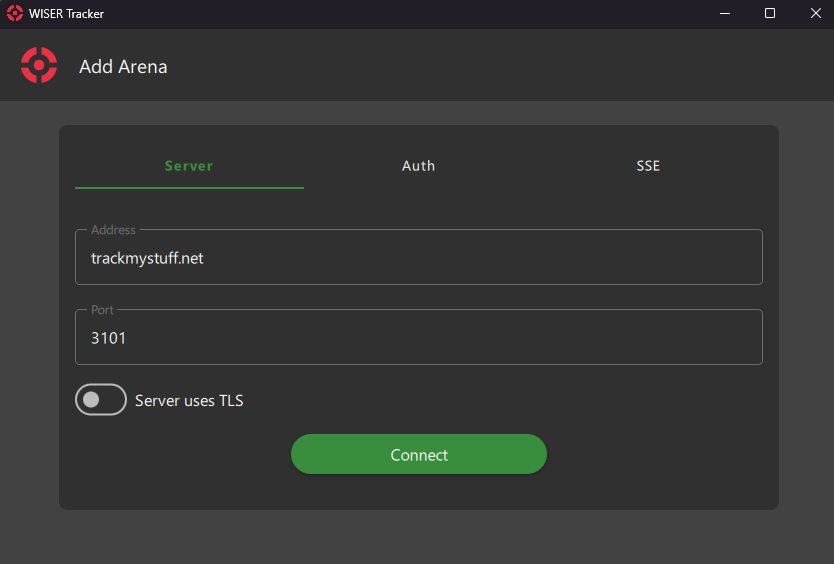
Section titled “Connecting to an Arena”When you open the Tracker App for the first time, the Add Arena Screen will appear
Mass Installation
Section titled “Mass Installation”Besides an “.exe”, we offer “.msi” and “.msix” installers to assist remote deployment. Because settings are stored at C:\ProgramData\WISER Systems and not in the installation folder, you can update, uninstall, or reinstall the app without losing your workstation configurations.
The Tracker App also has a Command Line Interface (CLI) to help mass replicate station installs.
To deploy a settings configuration, set up one station first and configure how you would like to replicate it.
After you are done, copy the settings .ini file and deploy it to all desired stations.
If you have saved sessions with Authentication, you need to perform an extra step at the new stations.
Run the following CLI, or a .bat or .ps1 script, in the Tracker App folder
WISERTracker.exe --update-session-password <session_name> --host <address> --user <user> --password <password>
The session name, host, port, and user are all required must match exactly an entry already present in the settings .ini file. If port is not specified, it will default to 3101. “Host” is the portion of the URL without the http:// or port. For example, if the settings file contains the following,
[Sessions]...Warehouse\Arena\1\Username=ReadOnlyUserWarehouse\Arena\1\RestUrl=https://10.10.0.18:3101...Then the update command would be,
WISERTracker.exe --update-session-password "Warehouse" --host "10.10.0.18" --port "3101" --user "ReadOnlyUser" --password "TestPassword123"