
Tags & Groups
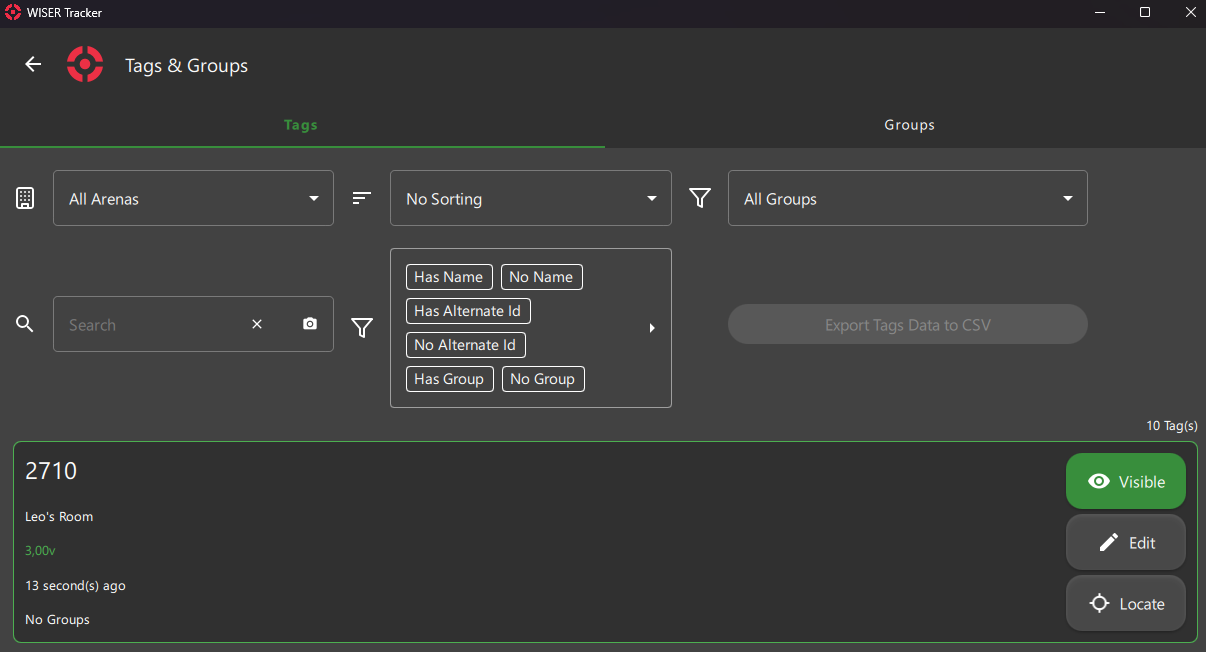
This Screen is available from the Main Menu on the First Steps: Home Screen and in here, you will be able to List, See, and Edit Tags and Groups.
You can toggle Tag or Group View in the top Tab Bar.
New Groups
Section titled “New Groups”To create new Groups, select the Group option in the top Tab Bar and a Floating Button will be available in the Bottom Right corner of the Screen
Filters & Actions
Section titled “Filters & Actions”Arena Filter
Section titled “Arena Filter”By Default the All Arenas options will be selected and it will list all Tags and Groups from connected Arenas.
Selecting an Arena will also set that Arena as active (in the Home Screen).
Search Filter
Section titled “Search Filter”- Search Groups by
Name. - Search Tags by
Hex ID,NameorAlternate ID.
You can select the sort of your liking from various options. The Sort option will revert back to default every time you leave the screen.
Group Filter
Section titled “Group Filter”You can list Tags from All Groups or Select a single Group.
Property Filter
Section titled “Property Filter”Mix the available options:
Has Extra Info: Will List Tags that have an Extra InfoNo Extra Info: Will List Tags without an Extra InfoHas Alternate ID: Will List Tags that have an Alternate IDNo Alternate ID: Will List Tags without an Alternate IDHas Group: Will List Tags that are in a groupNo Group: Will List Tags without any groupIs Inactive: Will List Tags that Never got a Location/PingNot Inactive: Will List Tags that Got a Location/Ping at some point
Export Tag Data to CSV
Section titled “Export Tag Data to CSV”- A single Arena must be selected.
- We use
;as Separator. - Unit System (Imperial or Metric) from the Application Settings Screen will be used.
Cards Action Buttons
Section titled “Cards Action Buttons”Visibility
Section titled “Visibility”- Tags & Groups can have their visibility toggled.
- Timeout Tags can not be set to visible.
- Tags Added to a Group will replicate its Visibility.
- Tags Removed from a Group will be set to Visible.
- Groups will propagate their visibility to their Tags.
Both Tag and Group offer an Edit Screen. Remember to hit Save when you are done.
Locate
Section titled “Locate”This action will move you to the First Steps: Home Screen and open a First Steps: 3 Tag Details Panel. The app will also automatically switch to Selected Tag’s Arena.