Application
These Settings are all Related to the App Only. Nothing will be saved or requested to the Wiser Server.
General
Section titled “General”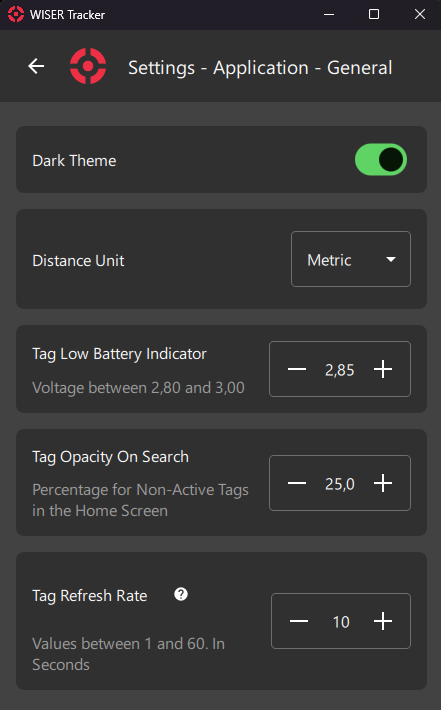
Dark Theme
Section titled “Dark Theme”Dark Theme will darken all colors across the App. This will help take some of the strain off your eyes and decrease energy consumption.
Distance Unit
Section titled “Distance Unit”Select Distance Unit for usage in the App. Either Metric or Imperial (Default).
Tag Low Battery Indicator
Section titled “Tag Low Battery Indicator”Select voltage for the Low Battery Indicator. This indicator will be displayed on the Home Screen.
Tag Opacity On Search
Section titled “Tag Opacity On Search”Selecting a Tag, by Clicking on it, Search or Locate Button will set all others tags opacity to this value.
Tag Refresh Rate
Section titled “Tag Refresh Rate”How Often the App Requests Updated Info from the API.
Visibility
Section titled “Visibility”Changes will take effect on the Home Screen. These Options are also available at Home Screen > First Steps: 8 Visibility Panel
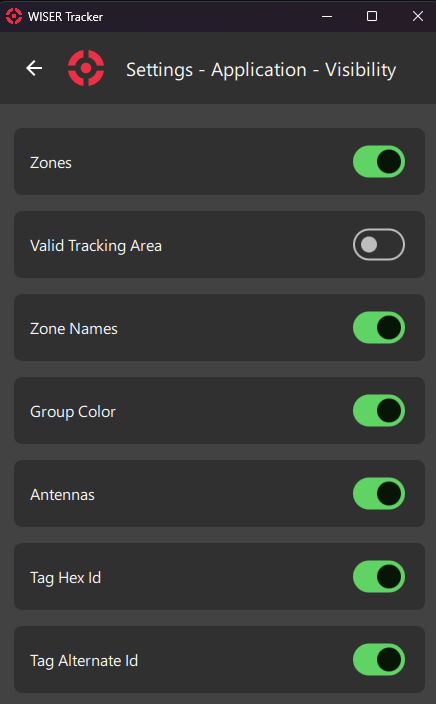
Display Zones.
Valid Tracking Area
Section titled “Valid Tracking Area”Display Valid Tracking Area.
Zone Names
Section titled “Zone Names”Display Zone Names.
Group Color
Section titled “Group Color”Display Tag in Group Color, instead of the default Red color.
Antennas
Section titled “Antennas”Display Antennas
Tag Hex ID
Section titled “Tag Hex ID”Display Tag Hex Id
Tag Alternate ID
Section titled “Tag Alternate ID”Display Tag Alternate Id
Tag Coordinates
Section titled “Tag Coordinates”Display Tag’s Coordinates (X, Y, Z) below the Name.
Simplify Tag Icon
Section titled “Simplify Tag Icon”Display Tags as Dots. When using a large number of Tags, using just a Dot might have a less crowded visualization.
Zone Halo Around Tag
Section titled “Zone Halo Around Tag”Display a colored halo with the Zone’s color around the tag, for Every overlapping zone.
Display Points
Section titled “Display Points”Display Tag Points on the Home Screen. Available in History Mode.
Display Spaghetti Diagram
Section titled “Display Spaghetti Diagram”Display a Spaghetti Diagram on the Home Screen. Available in History Mode.
Camera
Section titled “Camera”These Settings are also available inside the Camera Preview by Clicking the Gear Icon.
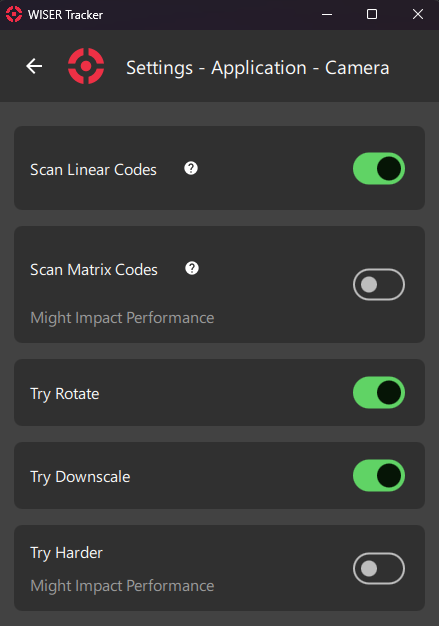
Scan Linear Codes
Section titled “Scan Linear Codes”Scan Classic Barcodes:
- Codabar
- Code39
- Code93
- Code128
- DataBar
- DataBarExpanded
- EAN-8
- EAN-13
- ITF
- UPC-A
- UPC-E
Scan Matrix Codes
Section titled “Scan Matrix Codes”Scan Matrix and QR Codes:
- Aztec
- DataMatrix
- MaxiCode
- PDF417
- QRCode
- MicroQRCode
Try Rotate
Section titled “Try Rotate”Rotate the Image, internally, to help detection.
Try Downscale
Section titled “Try Downscale”Downscale Image, internally, to help detection.
Try Harder
Section titled “Try Harder”Tries Harder.
Developer
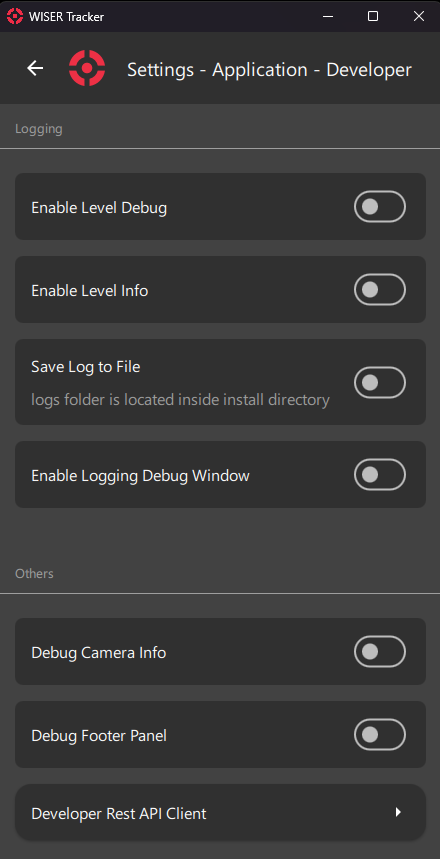
Section titled “Developer”Developer Settings Used by Wiser Team in Support Calls