
Session
Save Session
Section titled “Save Session”To Save a Session you must be at Home Screen and go to the Main Menu and Click the option Save Session.
A dialog will open and you will be able to write a name for your session.
All connected Arenas will be saved in the Session alongside their respective Auth configuration.
Connect to Session
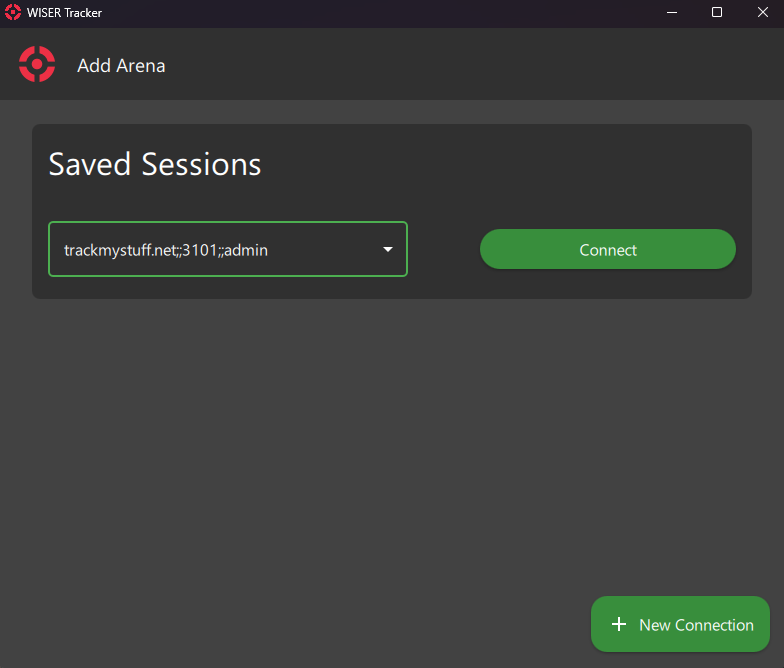
Section titled “Connect to Session”All saved sessions will be displayed on the Add Arena Screen. You can use the dropdown and Click the Connect button.
Session Manager
Section titled “Session Manager”Currently, on this screen, you can see all your saved sessions and the Arena’s Connection associated.
Delete Session
Section titled “Delete Session”- Go to the Session Manager Screen
- Use the dropdown to select the Session you want to Delete
- Click the Delete Session button and Confirm
Use Saved Session on New Install
Section titled “Use Saved Session on New Install”Since Version 4.0 you can use a station saved sessions for new installations.
Check Quick Start for more information.